
You have just received your assignment in the Versailles academy, and you are asked to check your file on Iprof. The problem is that the connection doesn’t work on the first try. Password denied, page loading, verification code not found: these blocks affect most teachers at least once a year. This guide outlines the concrete steps to access Iprof Versailles without wasting an hour in front of your screen.
Two-Factor Authentication Iprof Versailles: What Changed in 2025
Since 2025, the Versailles academy requires a mandatory two-factor authentication via OTP code to log in to Iprof through the official URL bv.ac-versailles.fr/iprof/. Specifically, after entering your username and password, a temporary code is sent to you via SMS or generated by an authentication app on your phone.
Further reading : How to Simplify Your Real Estate Processes with Online Real Estate
Before even attempting a first connection, you must have configured this second factor. This involves registering your mobile phone number or installing an OTP app (like FreeOTP or Google Authenticator) from your academic space.
If you haven’t set up this configuration in advance, the login page will block you without an explicit error message. To simplify your access to Iprof Versailles, address this issue as soon as the school year starts, before you need to consult an urgent document.
See also : How to Optimize Your Business Performance with Custom IT Solutions

Academic Username and Password: Composition Rules
You may have noticed that your academic username does not resemble an email address? It follows a specific logic that you need to know to avoid input errors.
Building Your Username
The username consists of the first letter of your first name followed by your last name, all in lowercase and without spaces. For example, for Julien Dupont, the username is jdupont.
In case of a name conflict with another agent, an order number is added directly after the name (jdupont2). You are not informed of this particularity when you take up your position, which leads to frequent blocks.
The Initial Password: Your NUMEN
Upon first login, the default password is your NUMEN. This 13-character code (uppercase letters and numbers) appears on your appointment order or your first nomination letter.
- The 4 letters of the NUMEN must be entered in uppercase, not lowercase.
- If you have already changed your password and forgotten it, the reset process goes through the portal id.ac-versailles.fr, not through Iprof itself.
- An expired password does not always trigger a clear message: the page may simply refuse the connection without explanation.
Frequent OTP Blocks and Unlocking Procedure
Two-factor authentication protects your file, but it also creates new friction points. Here are the three most common situations.
SMS not received after several minutes: check that the number registered in your academic profile is still active. A change of operator or an outdated number blocks the receipt of the code.
Lost phone or deleted OTP app: you cannot reconfigure the second factor yourself from Iprof. The only option is to contact the IT support of your rectorate or your local HR service to request a reset of the OTP device.
Third case: the authentication app displays a code that is consistently rejected. The problem often stems from a time zone mismatch on your phone. OTP codes are synchronized to the exact time. Enable automatic time synchronization in your device settings, and the code will become valid again.
ARENA Portal and Personal Data Before Iprof
Iprof is not an isolated tool. It integrates into a set of applications accessible from the ARENA portal of the Versailles academy. Why does this matter for your connection?
Because some personal data updates occur outside of Iprof, via related tools like Météonum, accessible from ARENA. If your postal address or bank details are outdated in Météonum, the information displayed in Iprof will be inconsistent, even after a successful login.
Before checking your administrative file on Iprof, go through ARENA to ensure that your basic data is up to date. This step avoids unpleasant surprises during a transfer request or when registering on an eligibility list.
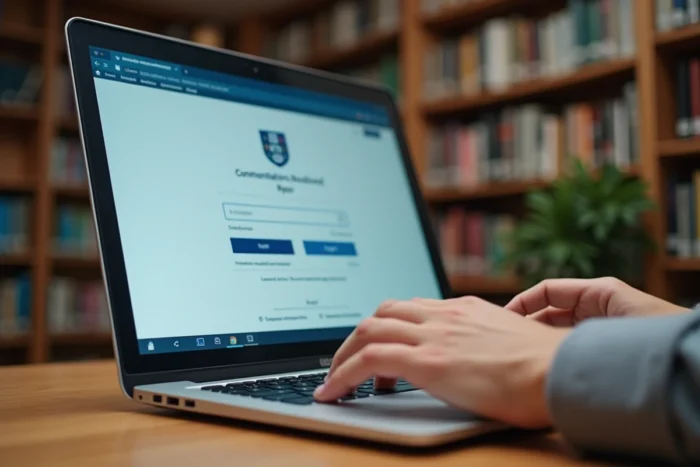
Mobile Access to Iprof Versailles: What Really Works
Iprof does not have a dedicated app. Access is only through a browser, including on mobile. The login page displays on mobile, but the interface is not optimized for small screens.
In practice, dropdown menus and certain forms are difficult to use on a smartphone. To check your file or update your CV, a computer or tablet remains the most reliable solution.
If you absolutely must log in from a phone, use the “desktop version” mode of your mobile browser. This forces the full site version to display and makes the validation buttons accessible.
One last point to keep in mind: two-factor authentication works the same way on mobile. Ensure that your OTP app is installed on the same phone from which you are trying to connect; otherwise, you will have to juggle between two devices to retrieve the code.